🪄 Creating a 'Direct Creation' Quiz
Learn how to create a quiz by directly inputting OX quizzes and multiple-choice questions.
1. Create a New Quiz
👉 How to log in to SheetQuiz and create a quiz (click)
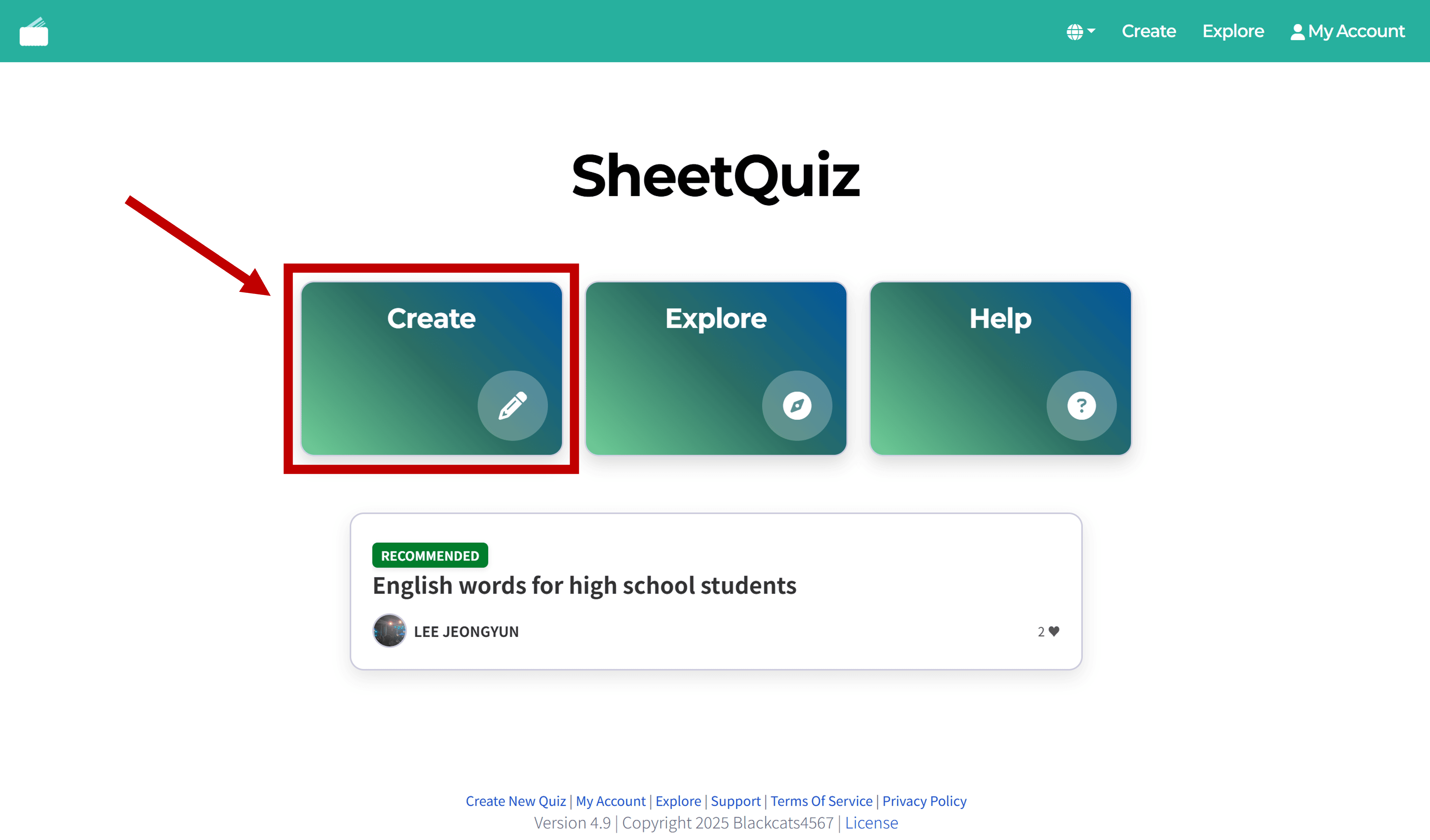
Click Create on the SheetQuiz main page.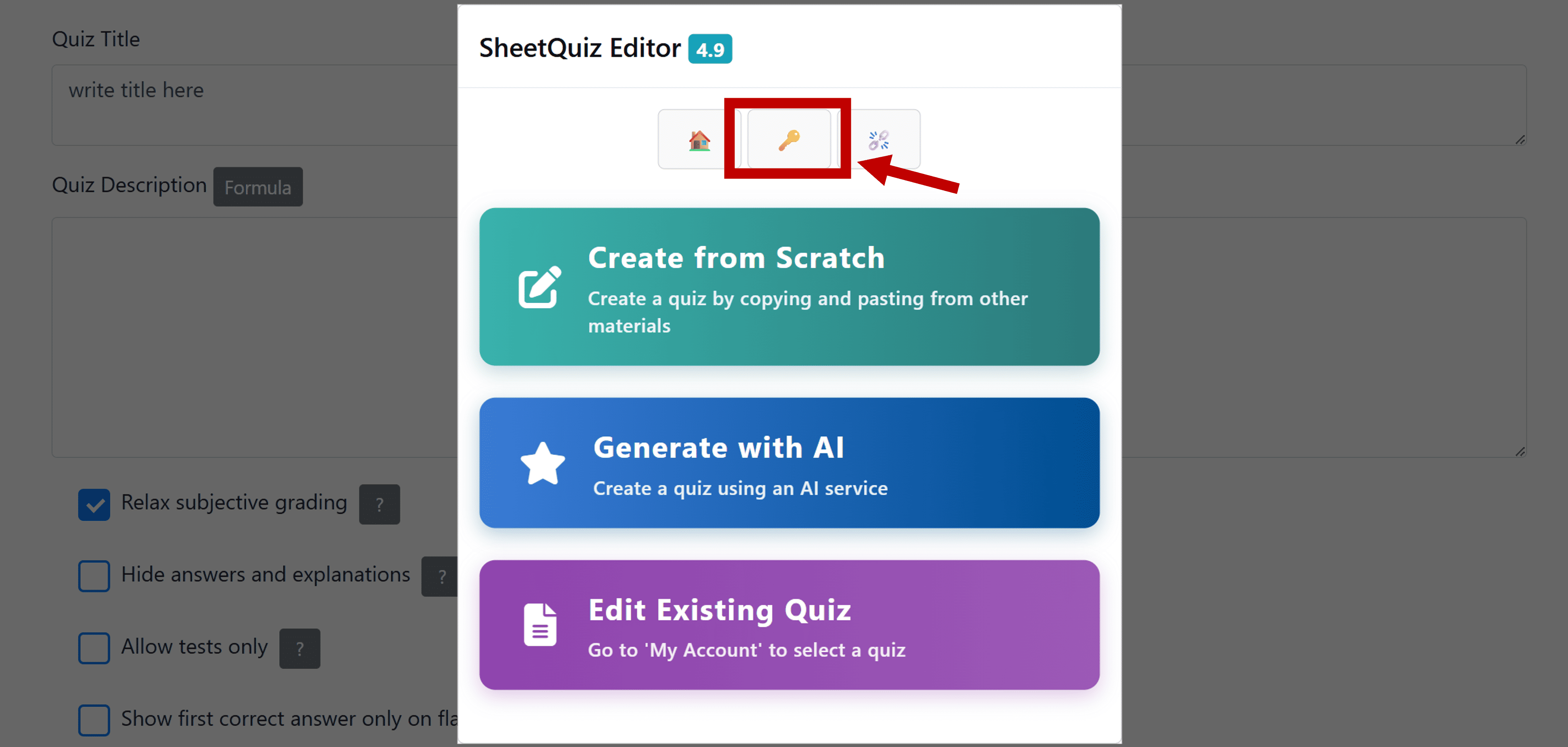
Click the '🔑' button on the editor's initial screen to log in.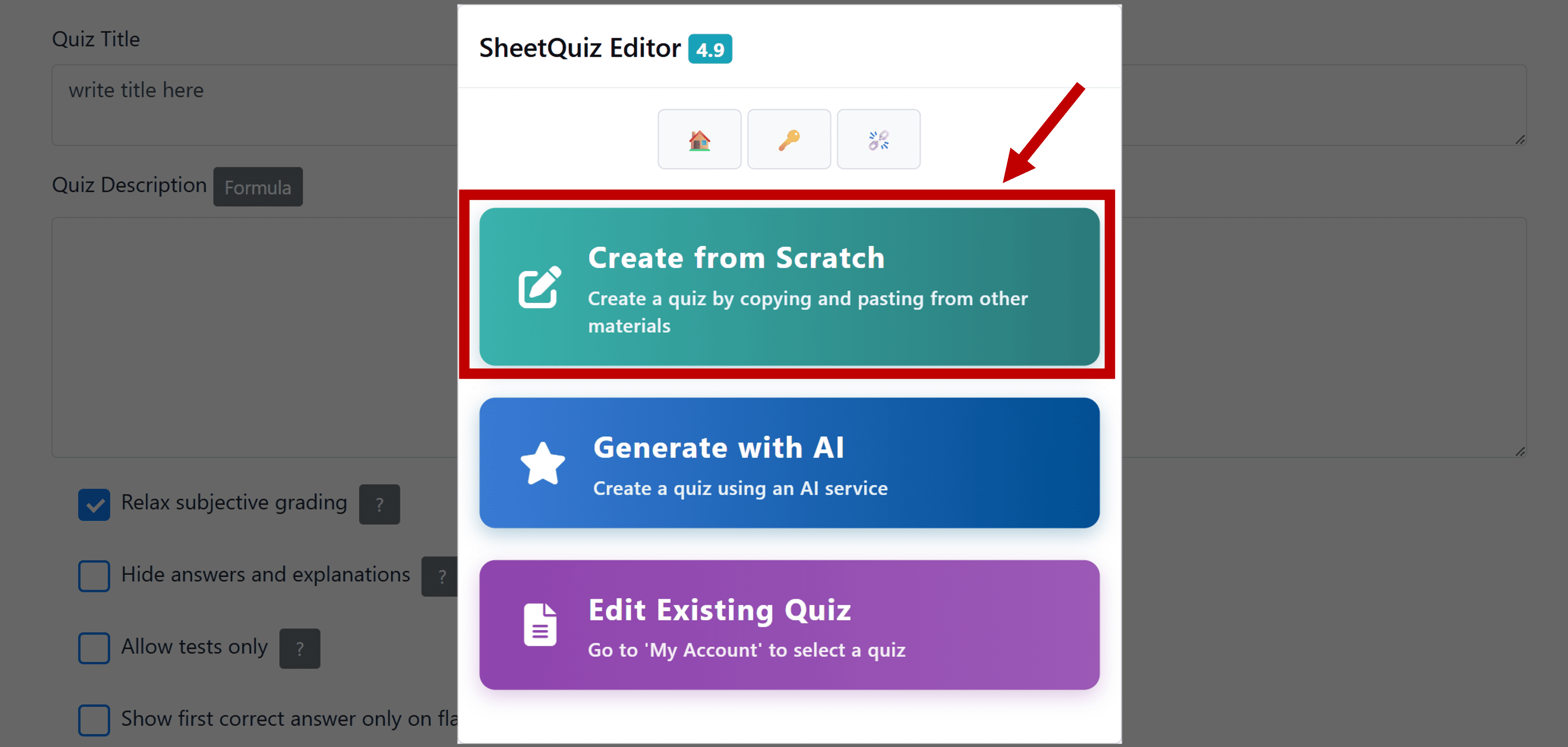
Once logged in, click the Create from Scratch button.
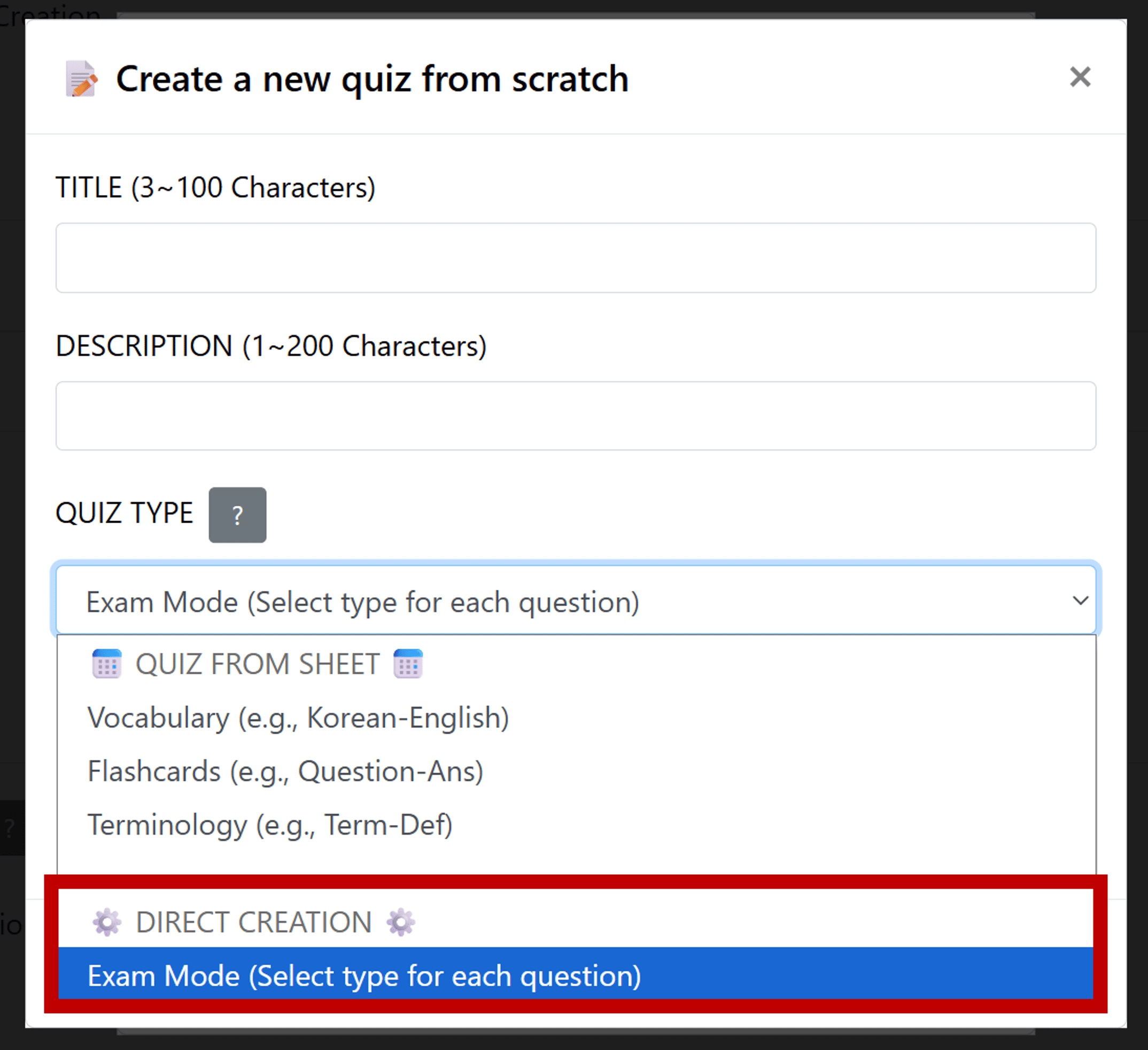
Enter the title and description, and you must select 'Exam Mode'.
When everything is complete, click the Create New button.
The TITLE and DESCRIPTION entered on this screen are the information displayed in the quiz share link preview.
2. Start Editing Quiz
If you have followed the steps so far, you will have been automatically redirected to My Account.
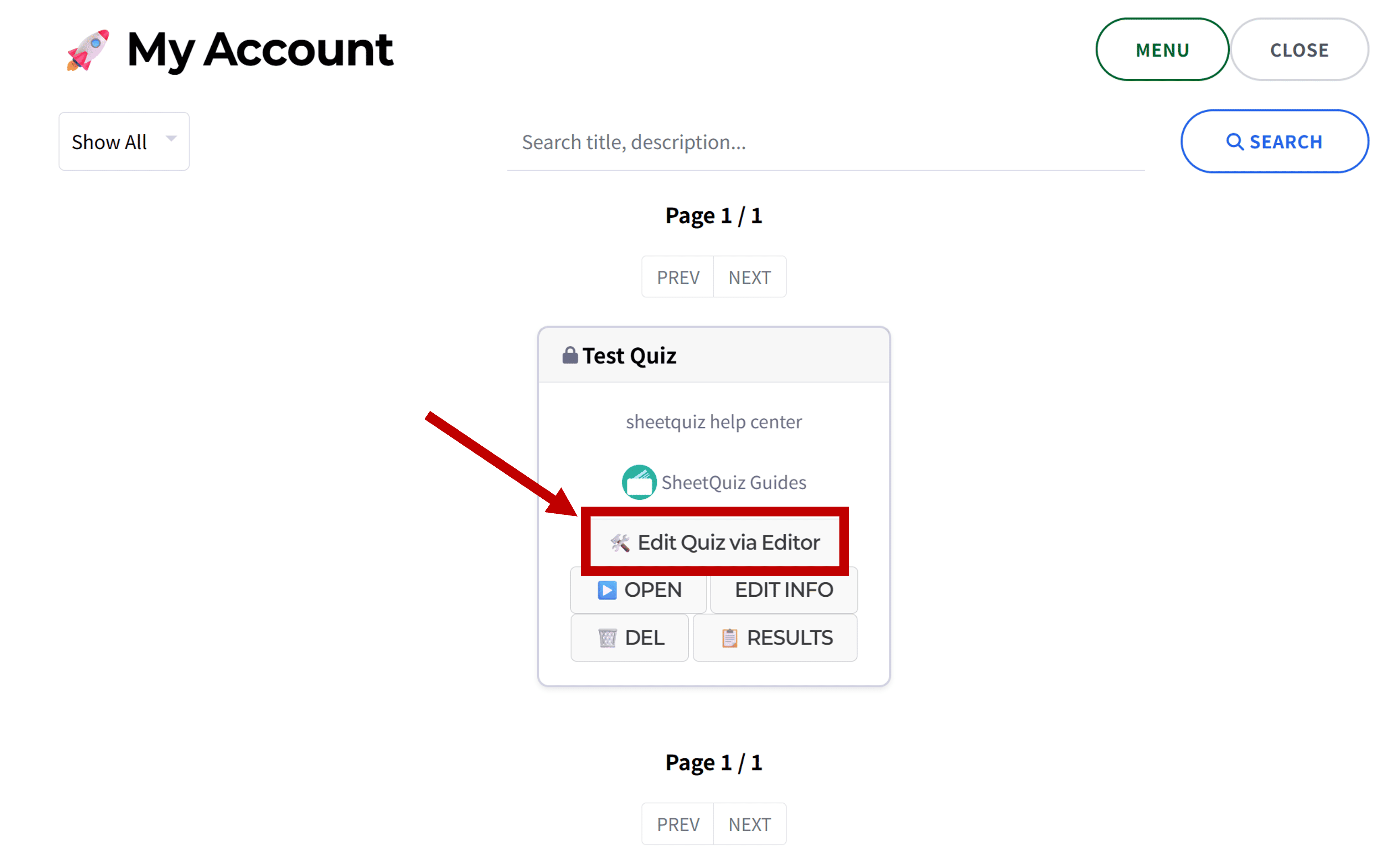
You can edit the quiz by clicking the '🛠️ Edit Quiz via Editor' button on the quiz you want to start editing.
Now, let's start editing.
3. Quiz Settings
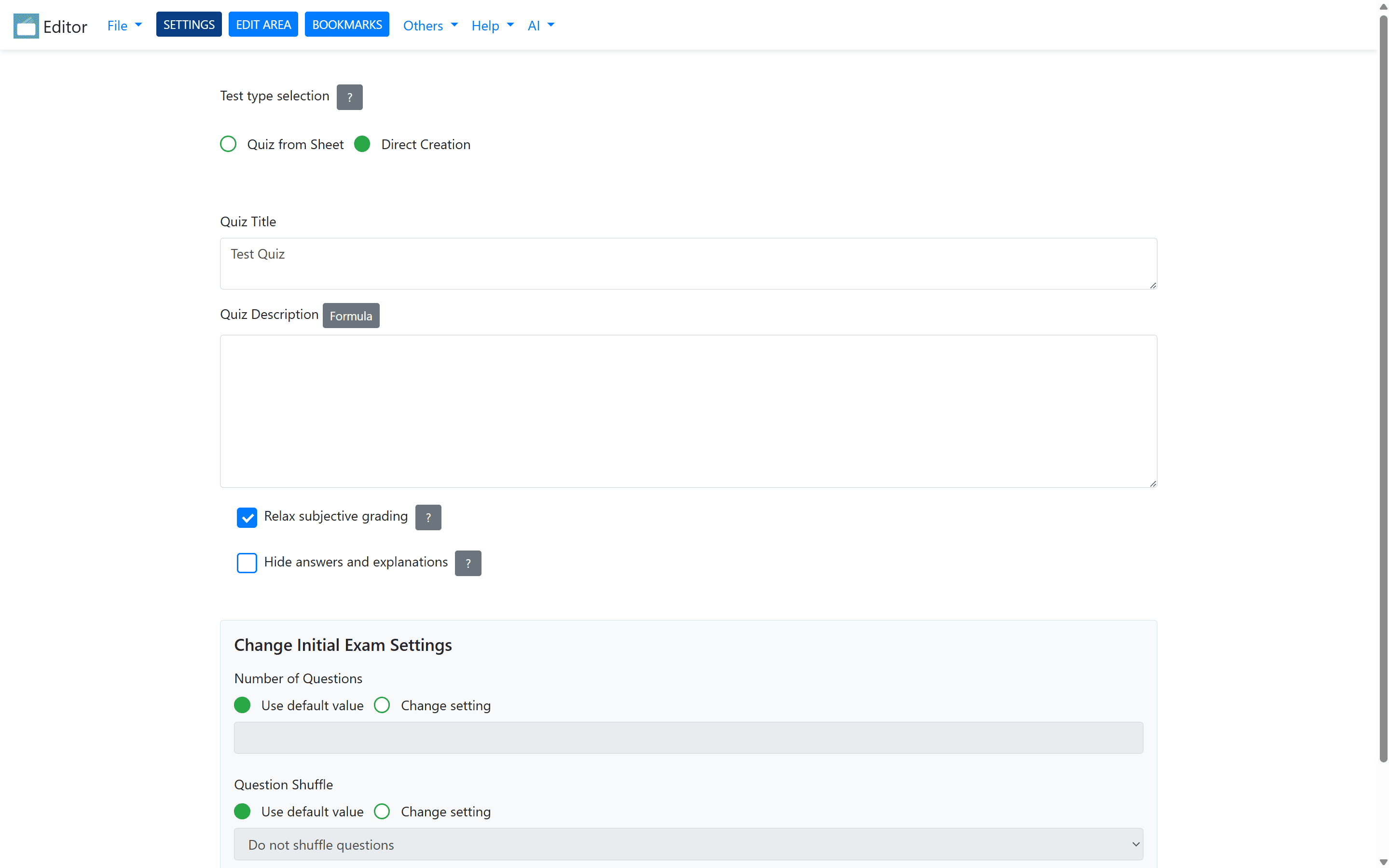
Do not change the Test type to 'Quiz from Sheet'.
The Quiz Title and Quiz Description entered on this screen are the information displayed when the quiz is opened.
- Relax subjective grading: If enabled, capitalization is ignored when grading subjective questions. If the entered answer is slightly different but has the same meaning, it is counted as correct, and parentheses in the answer are ignored.
- Hide answers and explanations: If enabled, the button to view answers and explanations after grading will disappear.
In Change Initial Exam Settings, you can set the exam generation setting presets for this quiz.
You can check the explanation for each initial setting at Student Guide > Set Exam Generation.
4. Creating a Quiz by Directly Inputting Question Information

Move to the 'EDIT AREA'.
After editing, you must Save (Ctrl+S) for the changes to be saved and applied!
4.1. Explanation by Question Type
- Multiple Choice (Single Answer): Defines a multiple-choice question where only one option can be selected as the correct answer.
- Multiple Choice (Multiple Answers): Defines a multiple-choice question where multiple options can be selected as correct answers.
- Subjective: Defines a question that accepts a single-line answer from the user. You can define multiple correct answers.
⚠️ Check whether the "Relax subjective grading" setting is on or off.
ℹ️ For short answer questions, if you enter only a comma (,) as the answer, any response from the user will be marked as correct. - Descriptive: Defines a question that accepts a multi-line answer from the user. You can only define one correct answer, which may include commas (,).
- True/False (O/X) Quiz: Defines a question where the choices are O or X.
When setting the correct answer in the objective type, click the button to the left of the option input field.
Questions without a correct answer will not be displayed when the quiz is opened, so please enter a correct answer for all questions.
Use the [Dup] button if you need to create multiple questions of a certain type!
4.2. Inserting Images
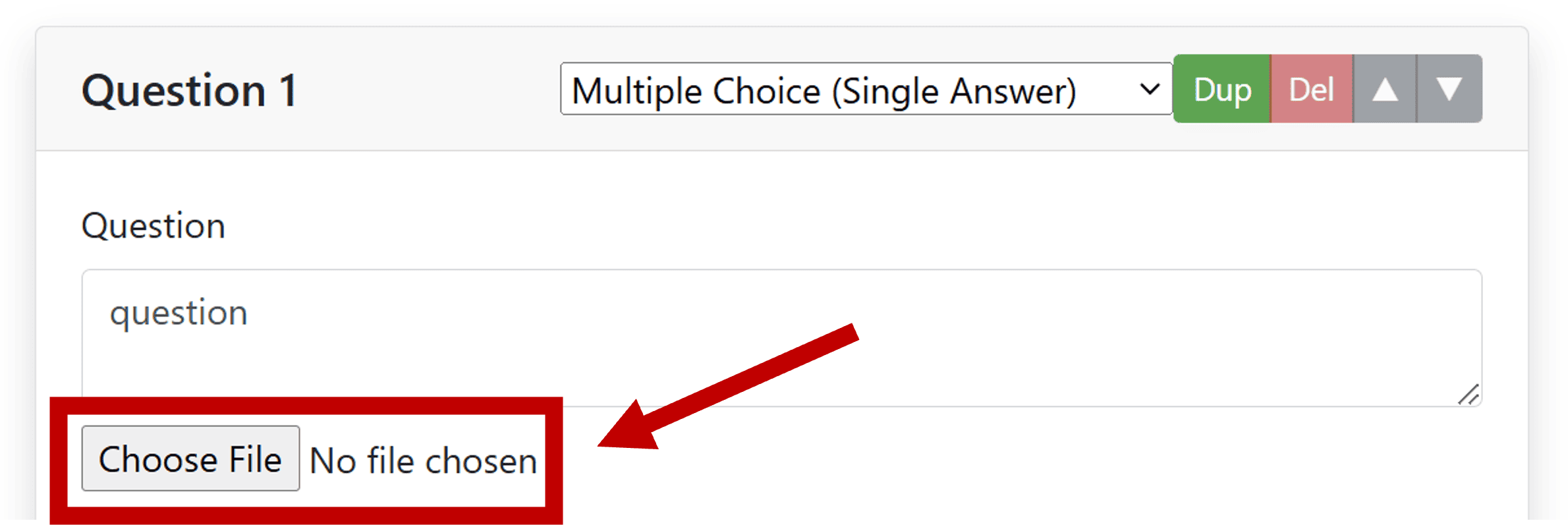
You can insert images into questions.
4.3. Inserting Formulas
You can insert LaTeX formulas into questions and options.
Click the 'Insert Formula' button at the top of the editing screen or use the Ctrl+M shortcut to open the formula insertion window.
Enter the formula and click 'Copy Formula' to copy it.
To insert a formula inline with text, enter the LaTeX formula data between $@ and @$. To display it in block form, enter it between $$@ and @$$.
5. Sharing the Quiz
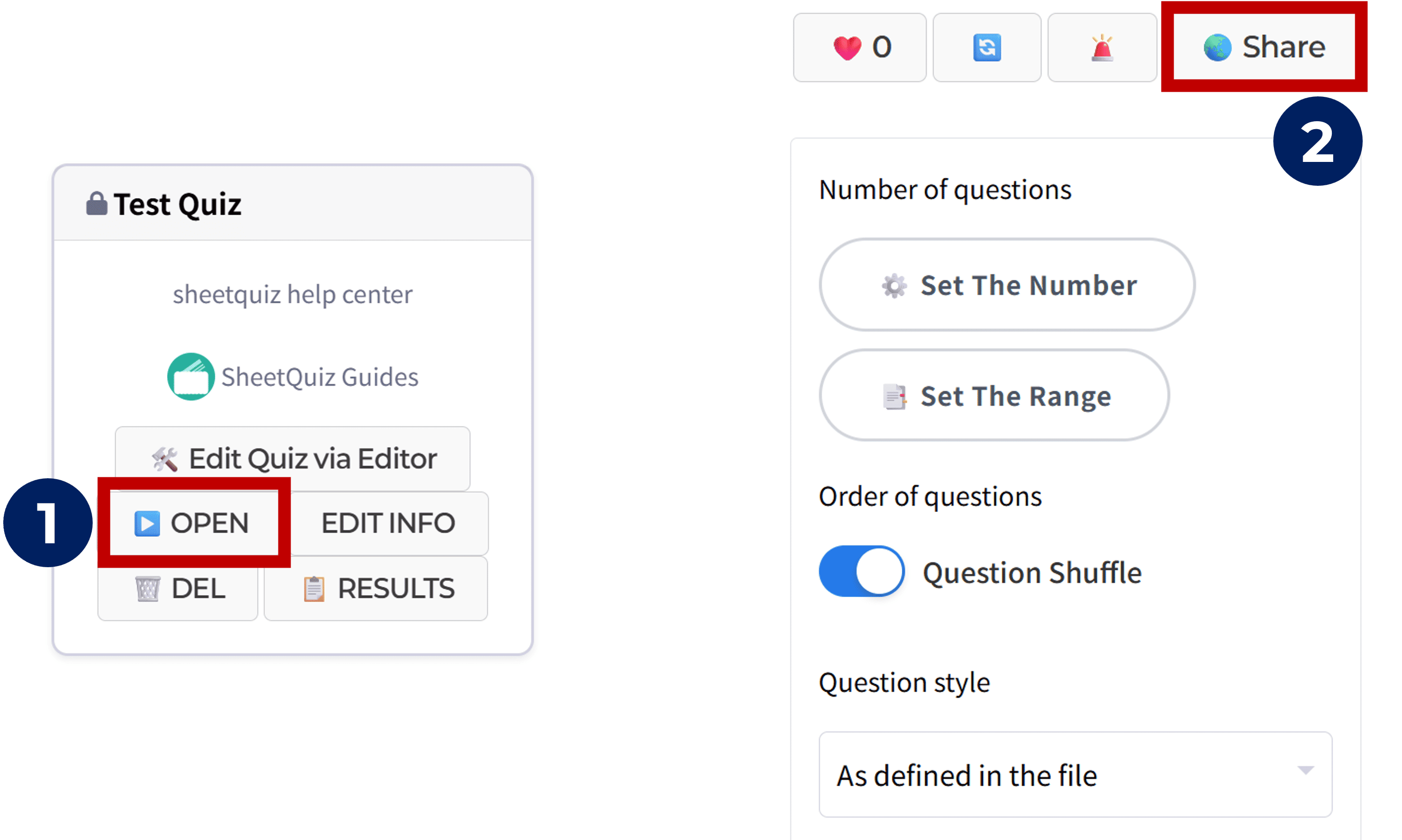
Return to My Account, click the ▶️ OPEN button of the quiz you want to share,
and click the 🌏 Share button on the newly opened quiz screen to copy the quiz share link.