🧑🎓 Student Guide
Introducing learning features to help you make the most of SheetQuiz.
1. About SheetQuiz
SheetQuiz is educational software that allows you to create quizzes from spreadsheet data or build survey-style quizzes.
Please read this guide to utilize SheetQuiz's features for more effective learning.
2. Study with Flashcards
Click the START WITH CARDS button to enter the flashcard learning mode.
This feature can be restricted by the quiz creator. The START WITH CARDS button may not be available.
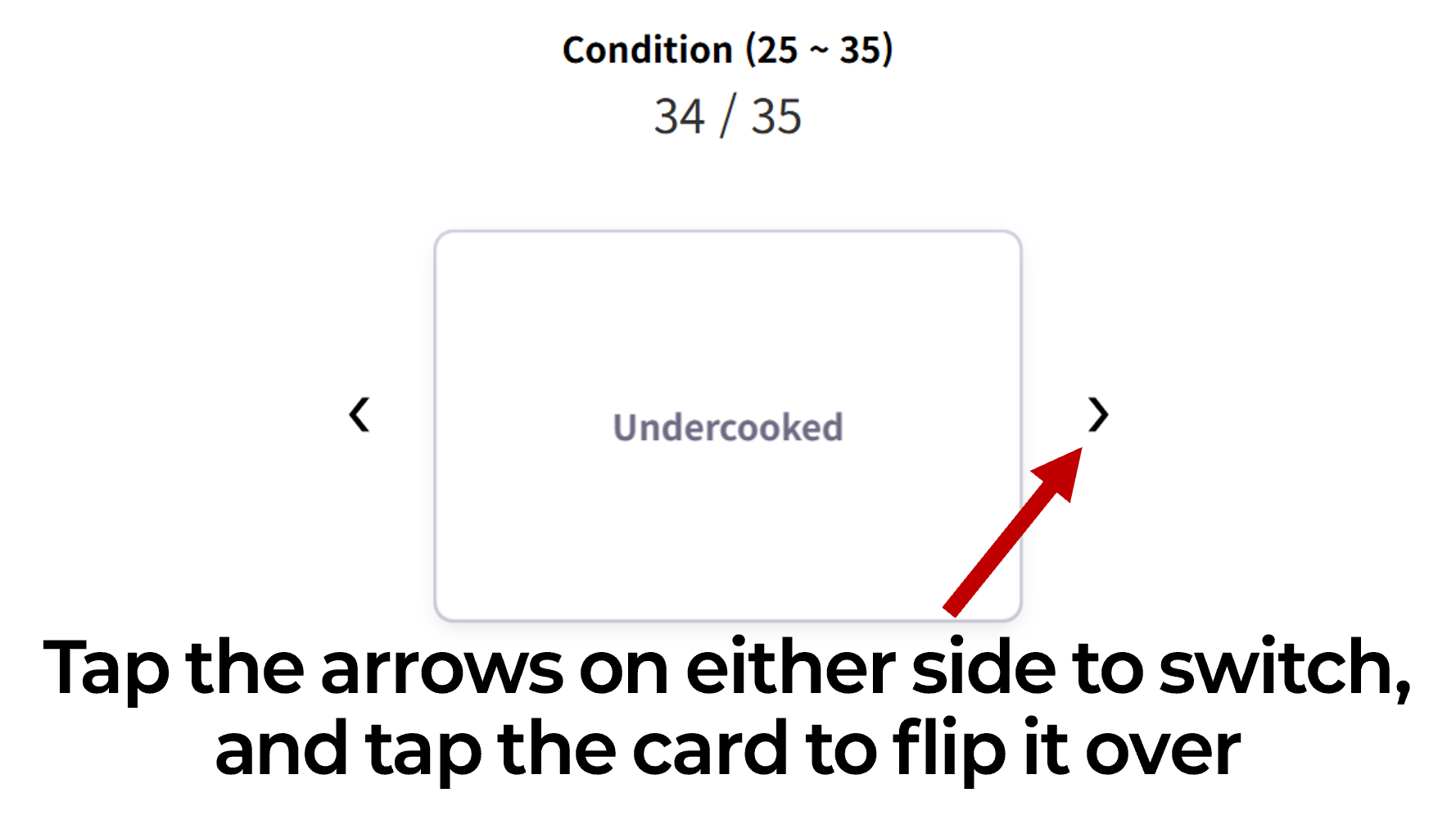
2.1. Touch Controls
| PC & Tablet | Smartphone |
|---|---|
 |
 |
2.2. Keyboard Controls
You can conveniently control flashcards with a keyboard if one is connected.
| Keyboard Controls |
|---|
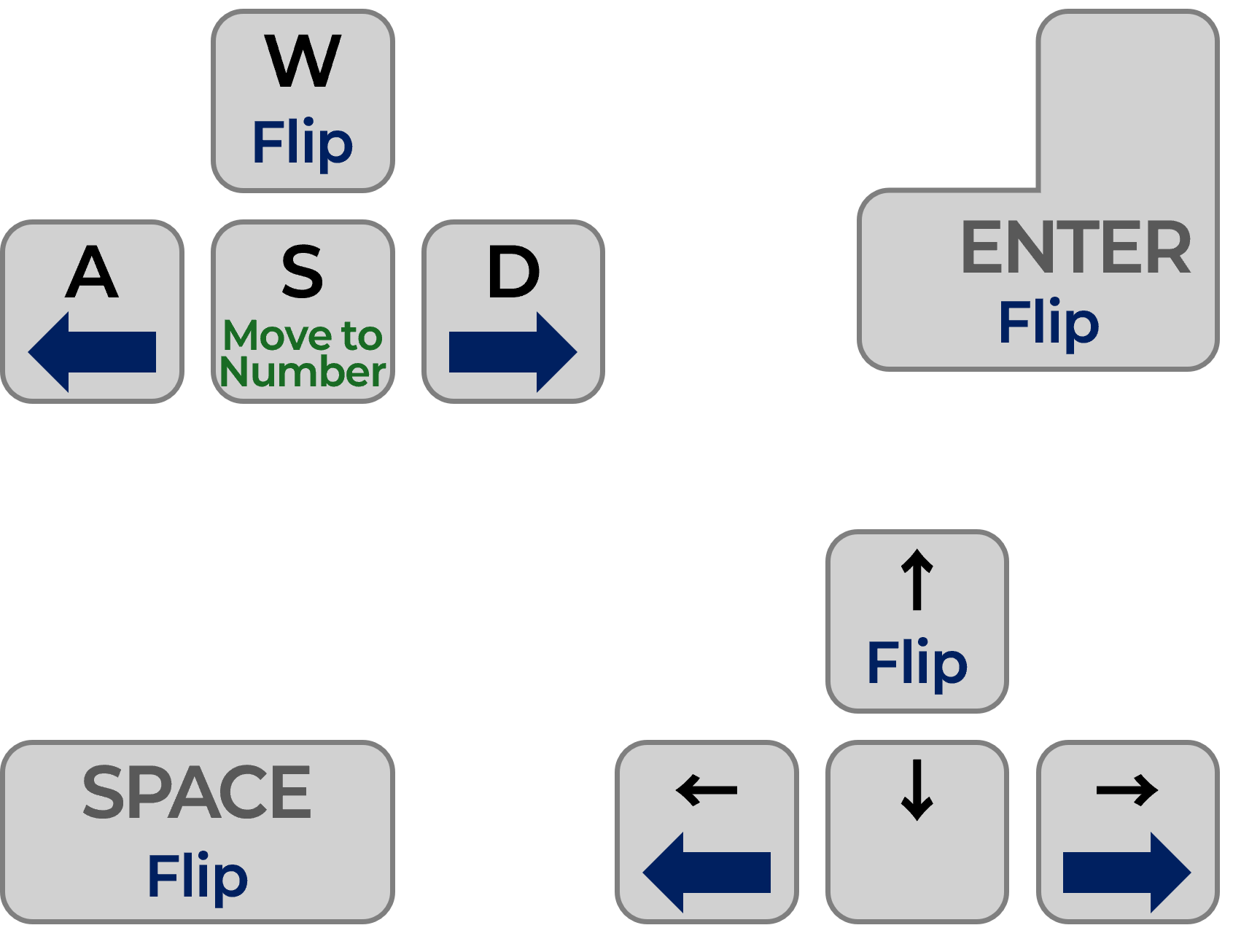 |
When flipping through cards left or right, you do not need to flip them back to the original side before moving to the next one.
3. Configure Exam Settings
3.1. Set The Number
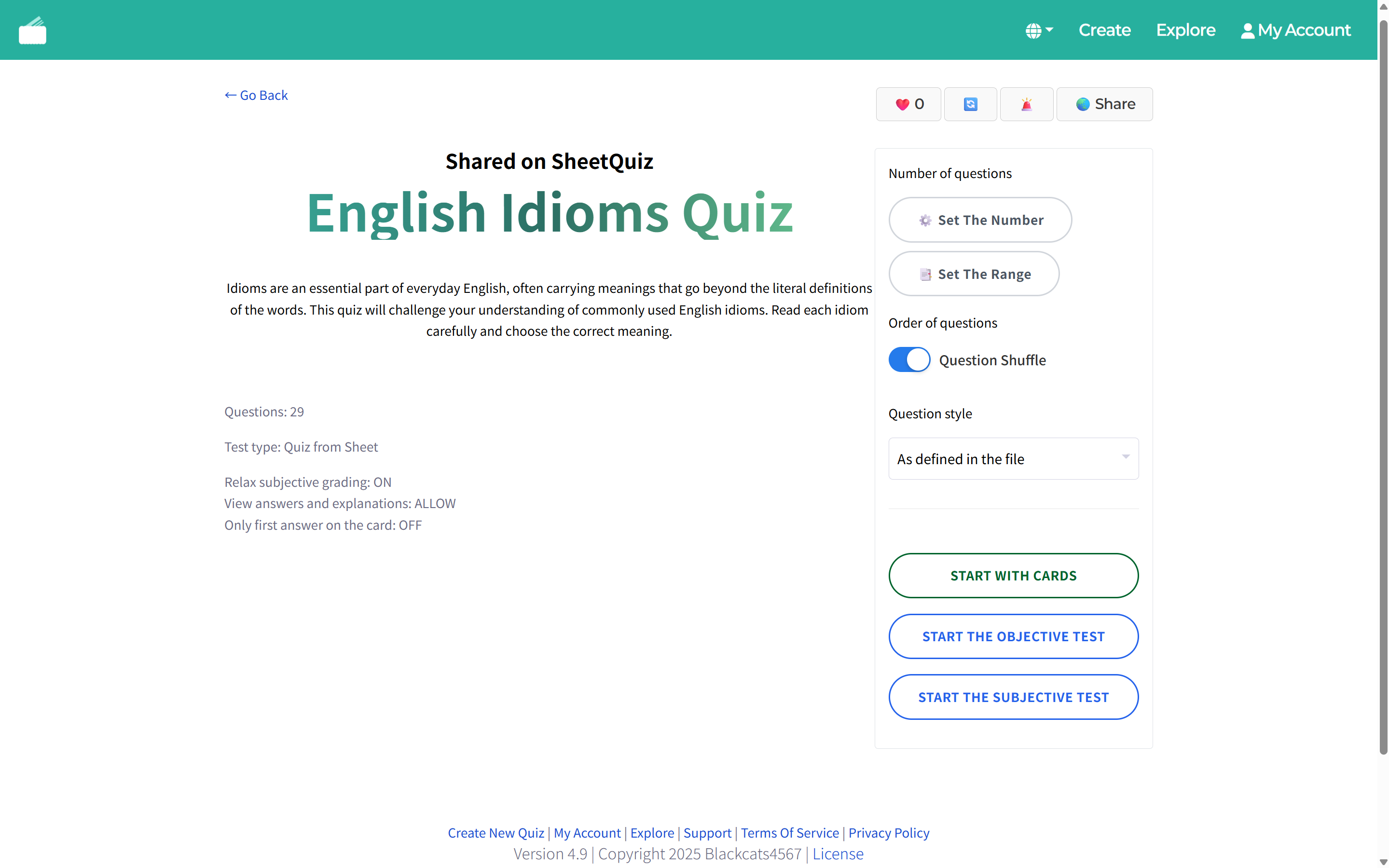
Click the ⚙️ Set The Number button to set the number of questions generated on the exam. You can adjust the range by entering numbers.
3.2. Set The Range
Click the 📑 Set The Range button to select a range preset configured by the quiz creator.
3.3. Order of questions
Use this setting to randomize the order of questions when generating the exam.
This allows you to create a test different from the order shown on the flashcards.
3.4. Question style
For example, if you opened an English vocabulary quiz,
Using this setting, you can choose whether to write the Korean meaning or the English spelling as the answer.
If you choose to randomly swap questions and answers, the Review Quiz feature will be disabled.
This feature is disabled for some exams where the questions are already fixed.
4. Taking the Quiz
Click the START THE TEST button to begin the exam.
Click the CHECK THE ANSWERS button to finish solving and start grading.
Do not write an answer if you do not know the question!
For objective tests, select nothing; for subjective tests, leave it blank.
To cancel a selection in an objective question, click the same answer again. The selection will be cancelled.
Questions left blank are treated separately as 'Unknown'.
5. Analyzing Quiz Results
When grading is complete, the questions you solved are categorized by color based on the results.
Questions treated as 'Unknown' (because you didn't answer) and 'Wrong' (because the answer was incorrect) are automatically added to the Review Quiz.
However, sometimes you might get a question right by luck. In quizzes where Review Quiz is available, an Add To Review Quiz button is added to 'Correct' questions. Clicking this button allows you to add correctly answered questions to the Review Quiz for further study.
6. Send Your Result
You can submit your grading results to the quiz owner.
Click the ✈️ Send Your Result button at the top of the results screen to open the submission popup.
This feature can be restricted by the quiz creator as follows:
- Not collecting results
- Collecting results for objective tests only
- Collecting results for subjective tests only
7. Create Review Quiz
Click the 🔬 Review Quiz button at the top of the results screen to create a review quiz for study.
This feature requires logging in to SheetQuiz, and Review Quizzes cannot be edited to protect copyright.
This feature is restricted if the quiz creator has set the answers and explanations to be hidden on the results screen.
This feature is disabled for some exams where the questions are already fixed.