📊 Collecting and Sharing Results
Learn how to collect results from quizzes and share real-time result tables from multiple quizzes.
1. Go to My Account
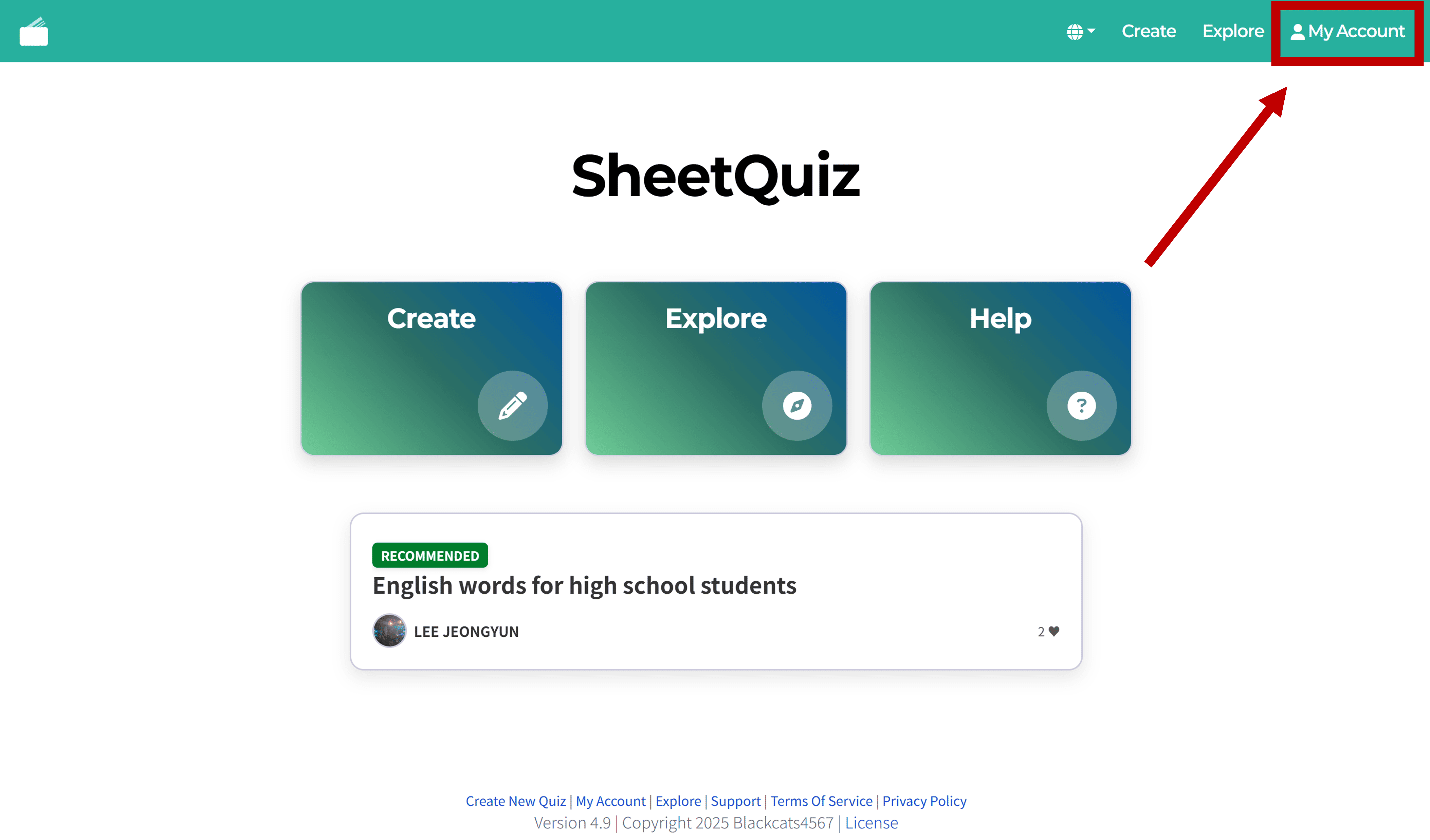
Click the menu at the top right to go to My Account.
2. View & Manage Result Lists for Individual Quizzes
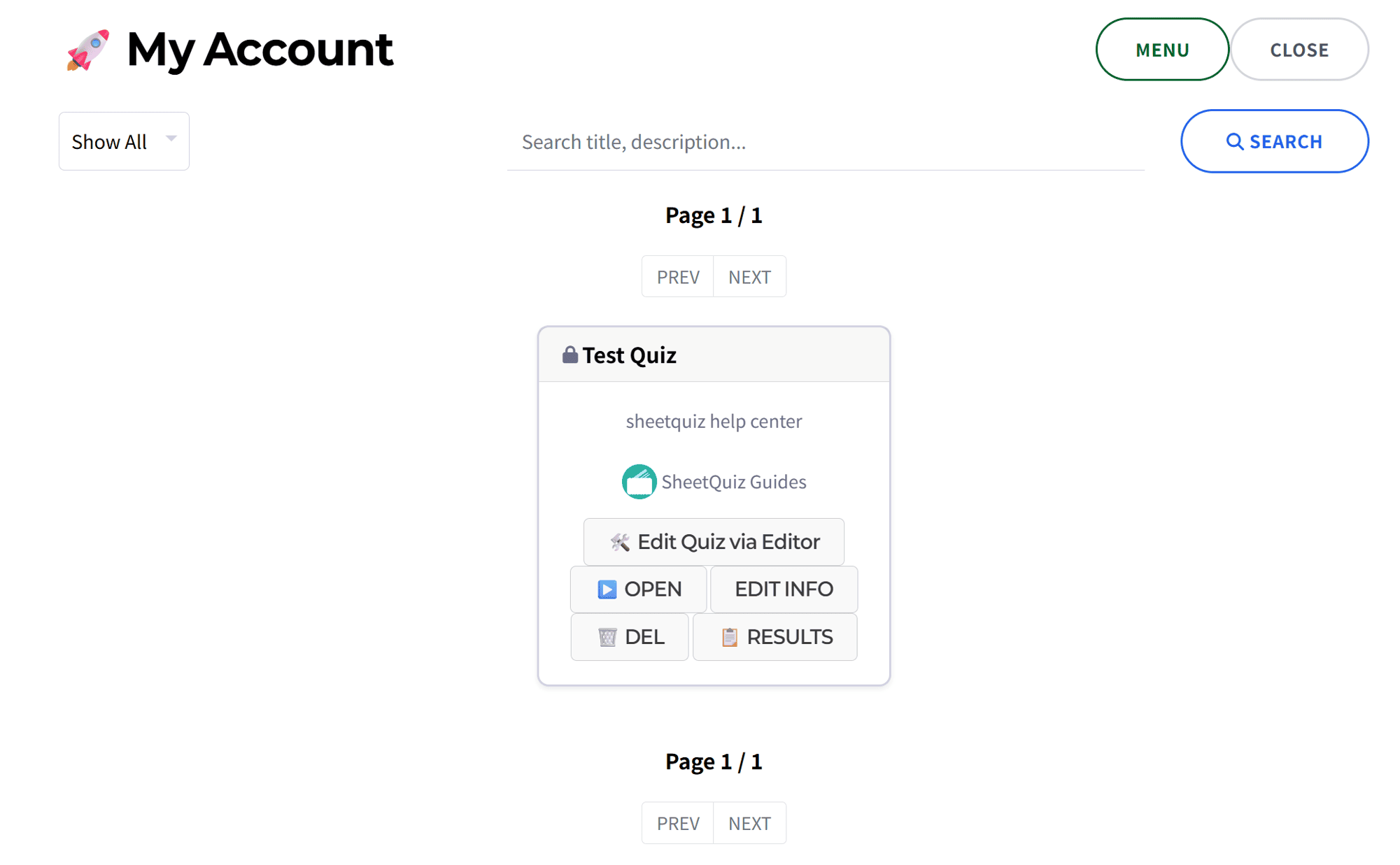
In My Account, click the 📋 RESULTS button for the quiz you want to view.
All collected results for that quiz will be displayed.
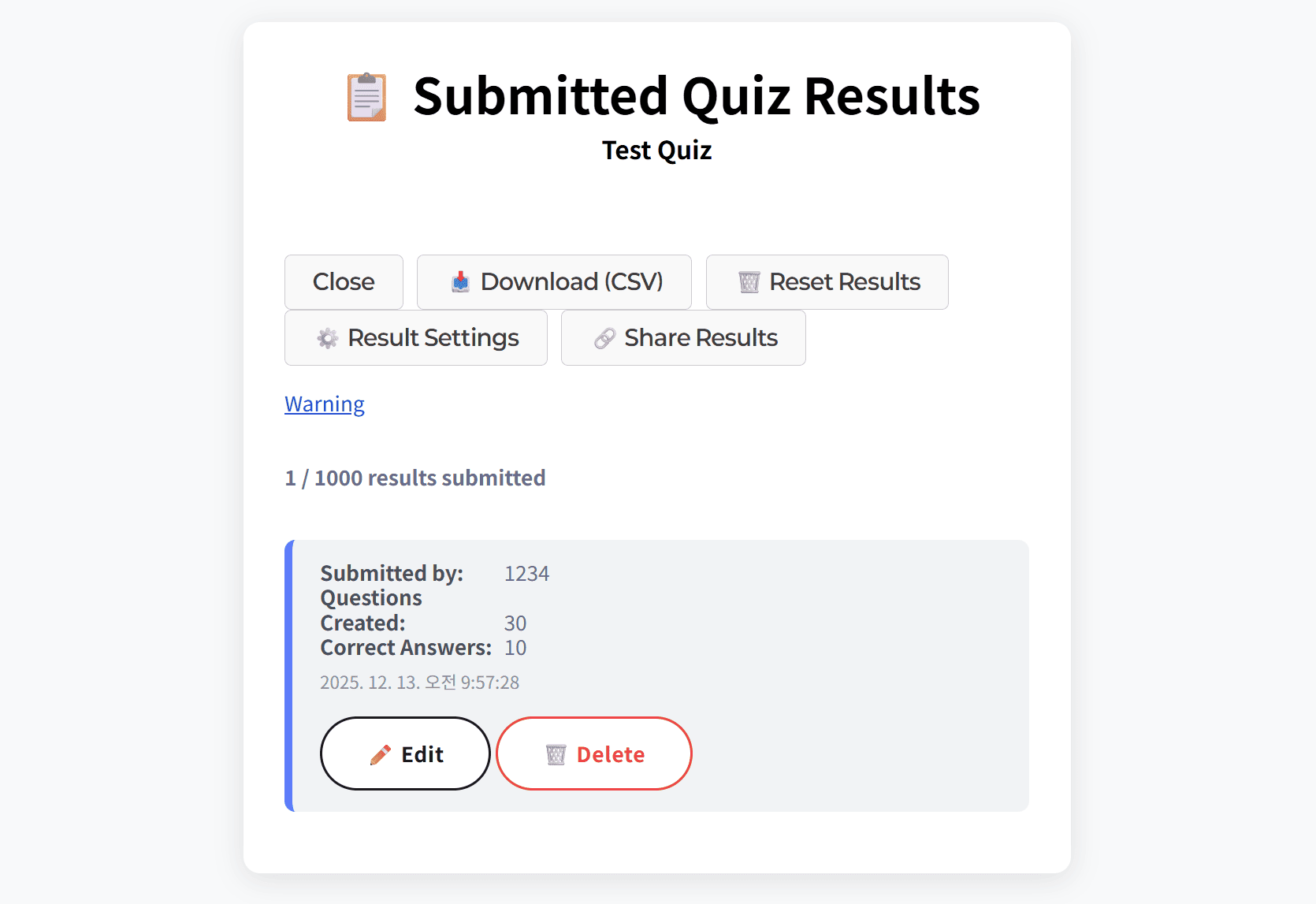
Since this page is for managing results, only the quiz owner can access it.
To share the result list, please check the next section.
Submitted results always carry the risk of being forged by unauthorized programs, so please do not use them for important evaluations.
2.1. Result Settings
Clicking the ⚙️ Result Settings button allows you to set conditions for receiving test results.
- Do not collect results: Does not collect test results.
- Collect results for all types of tests: Default setting; collects test results.
- Collect results for objective tests only: Collects results only for objective tests in 'Quiz from Sheet'.
- Collect results for subjective tests only: Collects results only for subjective tests in 'Quiz from Sheet'.
Test results are not automatically collected after grading. The student must click the submit button.
2.2. Edit and Delete Individual Results
In the results list, you can modify the saved content of an individual result by clicking the ✏️ EDIT button, or delete an individual result by clicking the 🗑️ DELETE button.
2.3. Reset Results List
Clicking the 🗑️ Reset Results button deletes all collected test results for the quiz.
2.4. Export Results
Clicking the 📥 Download (CSV) button allows you to download the quiz result list as a CSV file.
3. Share Real-time Result Tables of Multiple Quizzes
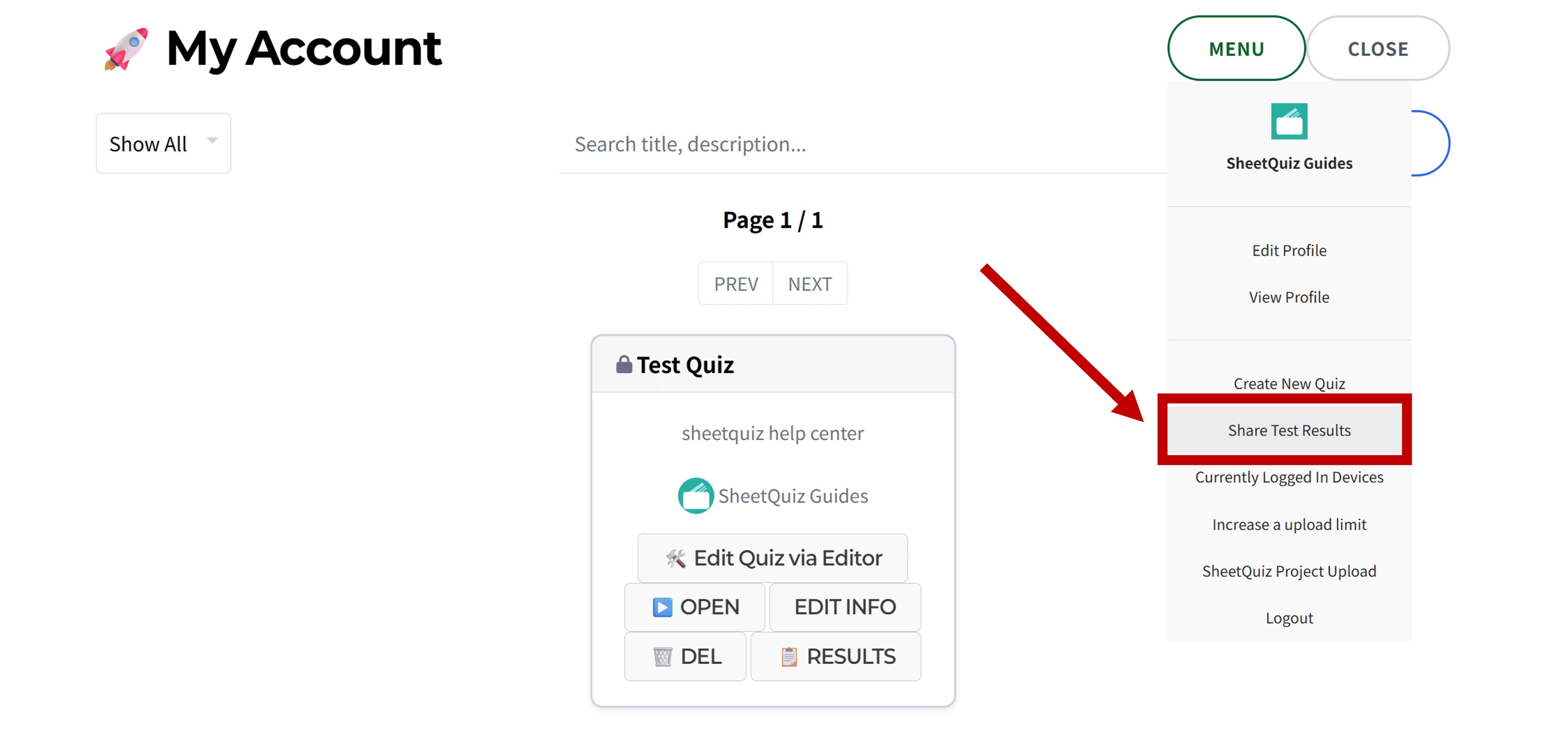
Click 'Share Test Results' in the My Account menu.
On the newly opened screen, click the ➕ Create New Link button to create a new result sharing link.
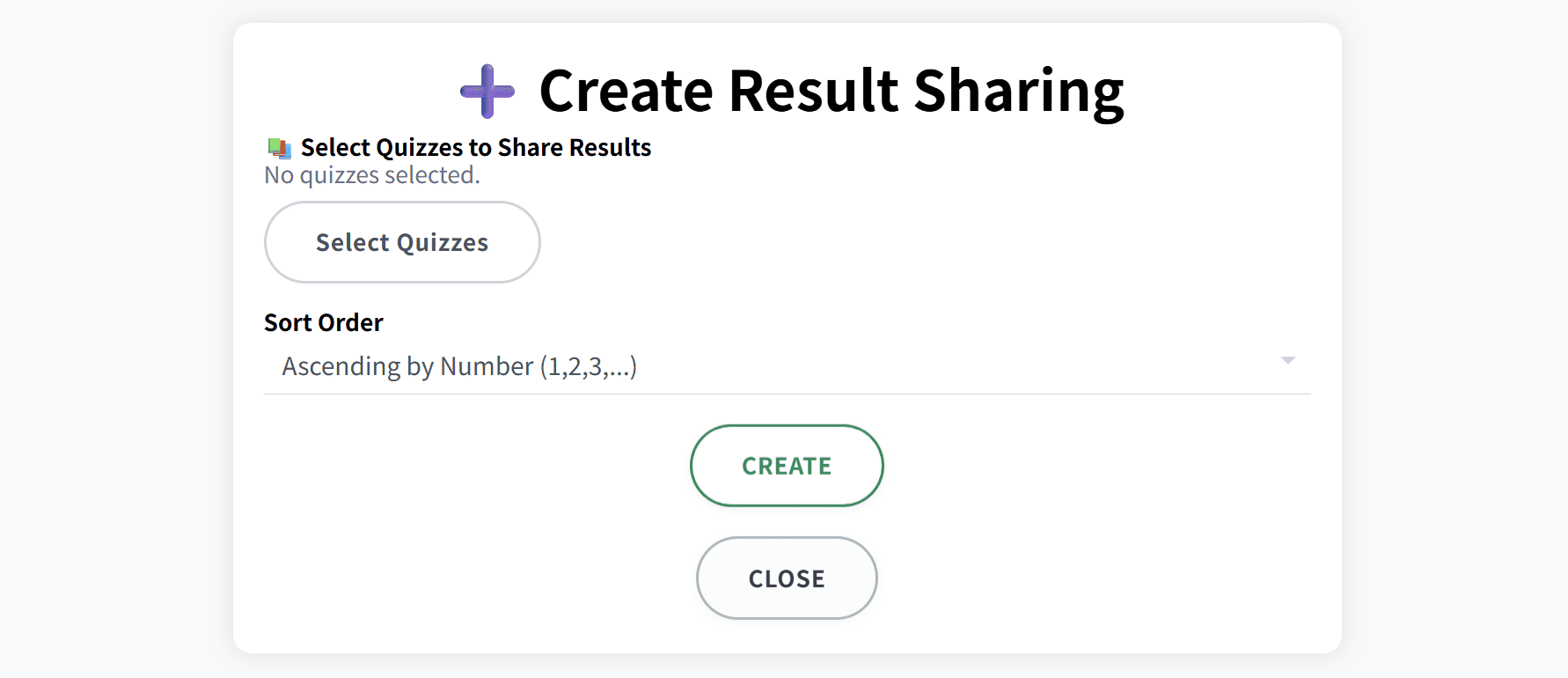
Click the Select Quizzes button to select up to 50 quizzes to include in the result sharing link.
When receiving quiz results, students enter numbers such as their student ID. 'Sort Order' determines how these numbers are ordered.
Creating a sharing link generates a page like the one below:
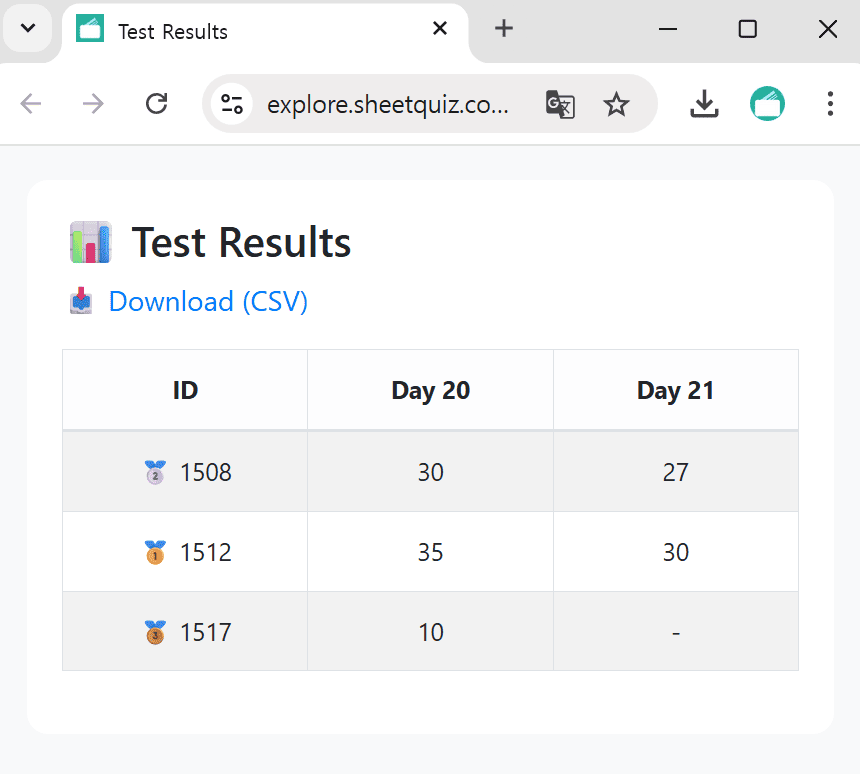
When comparing the results of the selected quizzes, 1st to 3rd places are displayed as 🥇, 🥈, 🥉.
If multiple results are submitted with the same ID, only the highest score is displayed.
Also, you can download the table in CSV format from the result sharing link.